On this page
- How do you scan a QR code from a screenshot on an iPhone?
- How do you scan a QR code from a picture on Android?
- How do you scan a QR code from an image on Windows?
- How do you scan a QR code on a Mac?
- How do you scan a QR code without a camera?
- Which method processes your picture where?
- Why won’t my QR code scan from a photo?
- Do you still need a scanner app?
- Questions
A QR code used to be something you pointed a camera at. What sends people searching is the opposite case: the code arrives as a picture — a screenshot in a group chat, a ticket in an email, a code on a slide. Holding the phone up to the monitor works, barely, and needs a second device. The job is to decode the image, and every current phone — and nearly every computer — can, without installing anything.
The scanner at the top of this page does it on any device: drop the screenshot in, pick the file, or paste it from the clipboard, and the code’s content appears as plain text before anything opens. If you prefer the built-in route, here it is per system — including the thing almost no how-to prints: where your picture is actually processed.
How do you scan a QR code from a screenshot on an iPhone?
- Open the picture in the Photos app.
- Tap the QR code itself — current iOS detects it directly. If nothing happens, tap the Live Text button (the text-recognition icon at the bottom) first, then the code.
- iOS frames the code and offers the link in a pop-up. Tap it only if you recognise where it goes.
Photos sometimes spots the code the moment the picture opens (iphonelife.com, read 2 October 2026), and the decoding runs on the phone: Live Text is an on-device iOS feature, not an upload (support.apple.com, read 2 October 2026). For a code on a website or in an app, a screenshot (side button + volume up) makes the picture this route expects.
How do you scan a QR code from a picture on Android?
- Open the picture in Google Photos or your gallery app.
- Tap the Google Lens icon — the lens symbol in or near the bottom bar.
- Lens outlines the code and offers to open the link.
The built-in route on most Android phones, no extra app needed (help.qrcodecreator.com and technobezz.com, read 2 October 2026). The footnote nobody prints: Lens analyses the picture on Google’s servers, so the image leaves the phone — GSMArena notes the server keeps a log of analysed photos, tied to the sending IP address (gsmarena.com, 13 July 2021, read 2 October 2026). For a ticket or anything personal, the decoder above is the private route: it runs on the device.
How do you scan a QR code from an image on Windows?
On Windows 11, the Snipping Tool reads codes out of screenshots itself:
- Press Win + Shift + S and drag a box around the QR code.
- Open the snip in the Snipping Tool; if it does not react immediately, tap the markup/text action on the detected code.
- The link appears — copy it, and paste it where you can read it before visiting.
QR detection in the Snipping Tool’s markup is a local feature from the tool’s 2025 updates — Microsoft’s documentation names it, and Windows trackers logged its arrival (elevenforum.com, September 2026; windowsforum.com, October 2025; both read 2 October 2026). Nothing is uploaded; the analysis happens on the PC. On Windows 10 no built-in reader exists — the paste-into-a-decoder route below is the whole answer.
How do you scan a QR code on a Mac?
The Mac is the odd one out: no dependable built-in route reads a QR code from a saved image. Live Text picks up text in Preview and Quick Look, but QR detection from a file is exactly what a current r/MacOS thread titled “QR Code reader native to MacOS (no third party)?” is still asking for (qrolling.com and reddit.com/r/MacOS, read 2 October 2026). Two routes always work, in any browser:
- Google Lens on the web (lens.google.com): upload the picture, get the link — it goes to Google’s cloud, as on Android.
- A decoder page: the one at the top of this page decodes the dropped or pasted screenshot on the Mac itself.
How do you scan a QR code without a camera?
You never needed one. A camera is for codes in the physical world; a code that is already a picture needs decoding — a job for software. Two camera-free routes cover every device:
- Paste it. Ctrl + V (⌘V on a Mac) pastes the screenshot straight into the decoder at the top of this page — no file dialog, no saving first.
- Drop the file. Drag the picture onto the drop zone, or use the file picker.
Both show the result the same way: the code’s raw content as plain text, the domain called out, nothing opened until you decide. ScanQR.org offers the same browser-based decode and states that images never leave the device (scanqr.org, opened 2 October 2026). Plenty of other “online QR scanners” are upload-based instead — the picture goes to a server you know nothing about, which matters for a ticket or a personal message (see why upload-based tools are a privacy problem).
Which method processes your picture where?
The step lists above look similar; what happens to the image does not. This is the column no ranking page ships — every row read or opened 2 October 2026:
| Method | Steps | Where the picture is processed |
|---|---|---|
| iPhone · Photos (Live Text) | open picture → tap the code | On the phone. Live Text is an on-device iOS feature (support.apple.com) |
| Android · Google Lens | open picture → tap the Lens icon | Google’s servers. The image is uploaded and analysed there (gsmarena.com; how-tos describe the upload) |
| Windows 11 · Snipping Tool | Win + Shift + S → markup on the code | On the PC. Local Windows feature, no upload (Microsoft Snipping Tool docs) |
| Any device · Google Lens on the web | lens.google.com → upload picture | Google’s servers. Same as Android, by browser |
| Any device · ScanQR.org | drop or paste the image | On the device. The site’s own words: “100% browser-based”, images never leave the device |
| Any device · the scanner on this page | drop, pick or paste the screenshot | On the device. Decoded by this page in your browser; nothing is uploaded |
Pick by the picture, not by habit: a public poster code is fine anywhere; a boarding pass or a medical letter is not a thing to hand to a cloud service.
Why won’t my QR code scan from a photo?
Decoding fails for physical reasons, and they are fixable at the source. These are the failure modes the scanner’s own error path lists — small, blurry, margin-cropped, low-contrast — and ScanQR’s FAQ echoes (scanqr.org, opened 2 October 2026):
| Symptom | Cause | The fix |
|---|---|---|
| The photo is soft or smeared | Blur — taken at an angle, too far, or a low-resolution screenshot | Get the original screenshot instead of a photo of a screen; or re-shoot square-on, close |
| Only part of the pattern shows | The crop cut a corner off the code | Re-crop so all three large corner squares and the middle sit fully in the picture |
| The crop touches the squares | The quiet zone — the empty margin around the code — is cut off; decoders use it to find the edges | Leave the code’s own white margin intact on all four sides |
| The code is a tiny speck in a full-screen shot | Too few pixels on the code itself | Crop tightly around the code (with its margin) before decoding |
| Dark screenshot, night mode, inverted colours | Low contrast between the modules and the background | Raise brightness, or use a decoder that retries inverted schemes — this page’s scanner does |
One honest note: a damaged or manipulated code can misread rather than fail — read the decoded text before acting on it, not just hope the scan works.
Do you still need a scanner app?
No — and the pages still telling you otherwise are quoting an earlier era. qr.io’s how-to for this exact question begins with “Download a scanner app” (qr.io/blog, read 2 October 2026, listing level). In 2026, iPhones and Android phones read codes from pictures out of the box, Windows 11 detects them in screenshots, and a browser tab covers everything else, including the Mac. An app is now the longer route, and asks for a camera permission you did not need to give.
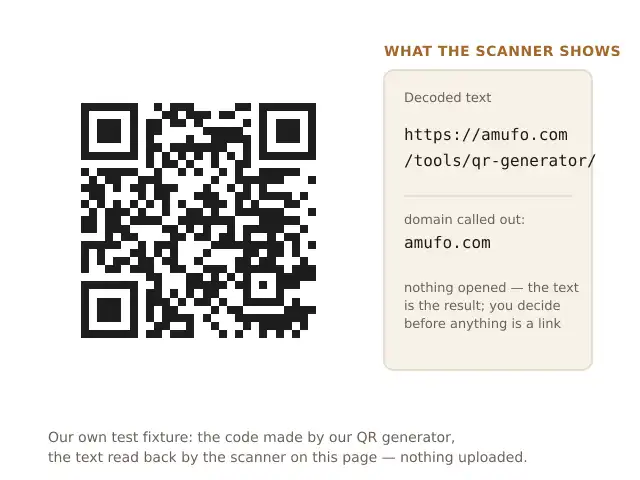
The fastest proof on your own device: make a code with the QR code generator, screenshot it, and drop it into the scanner at the top of this page. The text you typed comes back out — nothing uploaded at either end.
Every device route above was read or opened on 2 October 2026 and dated inline: Apple’s support pages, Microsoft’s Snipping Tool documentation via the Windows trackers that logged the QR feature, GSMArena on Lens’s server-side analysis, ScanQR.org’s own privacy statement, and the qr.io how-to. The where-it-is-processed column is those sources’ claims, not ours; the only processing claim made on this page’s behalf is the scanner’s own — it decodes in your browser and uploads nothing.
Questions
How do I scan a QR code from a screenshot on my iPhone?
Open the screenshot in the Photos app and tap the code itself — or tap the Live Text button first, then the code. iOS marks the detected code and offers the link; decoding happens on the phone.
Can I scan a QR code from a picture on Android without an app?
Yes. Open the picture in Google Photos (or your gallery) and tap the Google Lens icon; Lens outlines the code and offers to open it. The picture is analysed on Google's servers, so for anything sensitive use a decoder that runs on the device.
How do I scan a QR code on my laptop without a camera?
You do not need a camera at all — the code is already an image, so it needs decoding, not photographing. On Windows 11 the Snipping Tool detects QR codes; on any laptop, the decoder at the top of this page takes a dropped, picked or pasted (Ctrl+V) screenshot.
Is it safe to scan QR codes online?
The code itself is only a container for text — the risk is where a link inside it leads, and a camera scan opens it faster than you can read it. A decoder that shows the text first lets you check the domain before deciding; this page's decoder also runs entirely on your device.
Why won't my QR code scan from a photo?
Almost always one of three things: the photo is blurred, the crop cut into the quiet zone (the empty margin around the squares), or part of the code is missing. Crop tighter and sharper around the whole code with its margin, and try again.